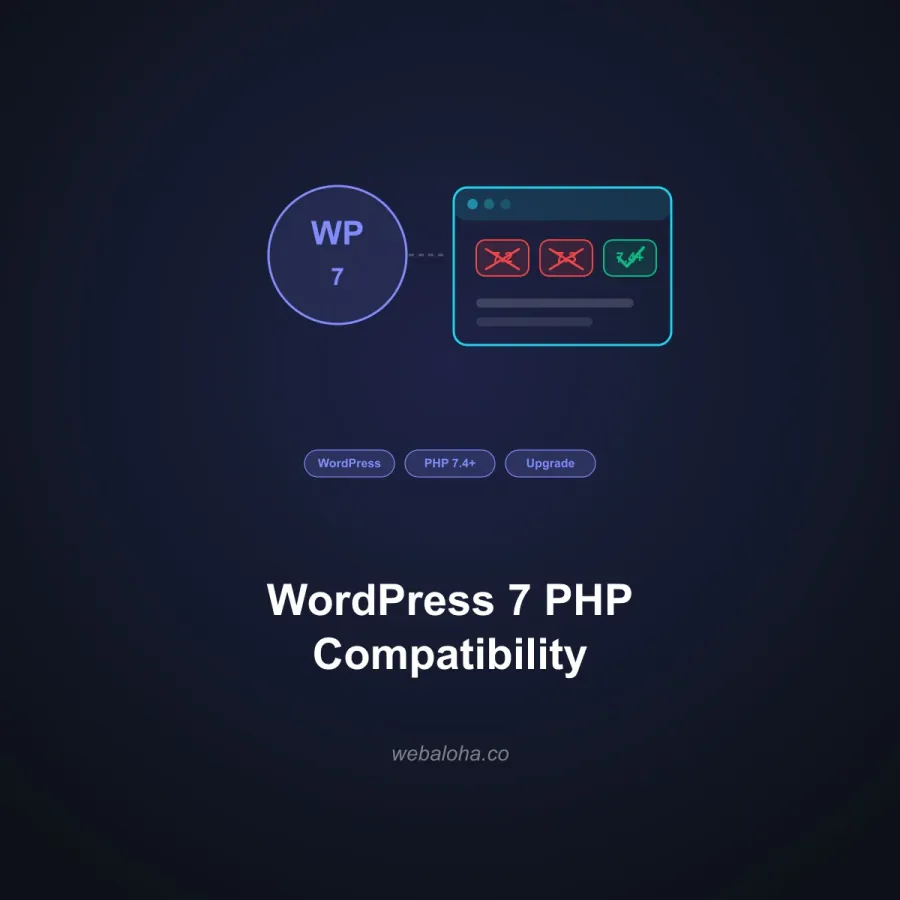
Elementor’s official requirements currently say PHP 7.4 or greater and recommend PHP 8.x. They do not prove that every Elementor Pro feature, add-on, theme, plugin, and custom integration works on every PHP 8.x branch.
Requirements below were checked against Elementor’s documentation on 2 October 2026. Use that baseline, then test the actual site. PHP 7.4 is an end-of-life branch, so meeting the minimum is not a reason to keep it in production.
Current Elementor requirements
According to Elementor’s system requirements, the current baseline includes:
| Requirement | Elementor documentation |
|---|---|
| WordPress | 6.5 or greater; latest recommended |
| PHP | 7.4 or greater; PHP 8.x highly recommended |
| Database | MySQL 5.6+ or MariaDB 10.5+ |
| WordPress memory | 256 MB for Elementor and Pro; 512 MB recommended; 768 MB for best performance |
| Browser/editor | Supported desktop browser; editing on phones and tablets is not supported |
| Compression | Zlib preferred |
| Editor framing | Same-origin preview framing must be allowed |
These are Elementor product requirements. Choose maintained database and PHP branches that also meet WordPress requirements; a product minimum is not a security-support recommendation. The WordPress Hosting Handbook recommends PHP 8.4 or later for production, while WordPress.org lists PHP 8.3 or later.
Why PHP compatibility is site-specific
An Elementor site can include:
- Elementor and Elementor Pro versions;
- a theme and child theme;
- Elementor add-on packs;
- custom widgets, dynamic tags, and snippets;
- forms, SMTP, CRM, and webhook integrations;
- WooCommerce templates and extensions;
- caching, security, translation, and consent plugins;
- server modules and PHP extensions.
A clean editor on one template does not test that system.
Test matrix for a PHP change
- Duplicate production to staging.
- Update maintained WordPress, Elementor, Elementor Pro, theme, add-ons, and plugins.
- Confirm the target PHP version is supported by the site’s WordPress branch using the WordPress compatibility matrix.
- Back up files and database and verify the PHP rollback.
- Switch staging with the same PHP extensions and limits as production.
- Open Elementor on representative pages and test save, update, responsive controls, global styles, templates, popups, forms, dynamic data, and revision history.
- Test front-end layout at key breakpoints and logged-in and logged-out states.
- Test WooCommerce product, cart, checkout, account, emails, and callbacks where used.
- Review browser console, PHP logs, WordPress debug logs, scheduled jobs, and server errors.
- Deploy in a monitored window and repeat critical tests.
If the editor will not load or save
An editor failure does not automatically prove PHP incompatibility. Narrow it down before changing the runtime again:
| Symptom | Check first | What to do on staging |
|---|---|---|
| Memory exhaustion in the PHP log | Effective PHP and WordPress memory limits | Ask the host to verify the actual limit; do not keep raising it without identifying the failing operation |
| Preview blocked or refused | Browser console and response headers | Check same-origin iframe access and conflicting security rules with the host |
| Save request fails or returns invalid JSON | Network response status and body | Look for a login redirect, server error or PHP warning in the response |
| Fatal error naming an add-on or custom widget | File and line in the error log | Update or isolate that component, then repeat the operation |
| Undefined function after a PHP switch | Module availability in the web handler | Compare the old and new branch’s PHP extensions |
Elementor documents X-Frame-Options: SAMEORIGIN and a CSP frame-ancestors 'self' policy for its preview. Review existing security policies with the host so the editor can frame its own pages; do not remove the site’s protections wholesale.
For memory, compare the host’s effective PHP limit with WordPress’s configured limits. An entry in wp-config.php cannot guarantee that the host allows that allocation. Reproduce the same edit and save operation after any adjustment and inspect the logs again.
PHP 8.4 versus 8.5
WordPress Core supports PHP 8.4 from WordPress 6.7 and PHP 8.5 from WordPress 6.9. Elementor’s public requirement says PHP 8.x, so site-specific testing decides between them.
- Use PHP 8.4 guidance when the WordPress branch supports it and a component has not cleared 8.5.
- Use PHP 8.5 guidance when WordPress 6.9 or later and the complete stack passes.
- Use the recommended PHP version hub for the ongoing selection policy.
If the site still runs PHP 8.2, its security support ends on 31 December 2026, so plan the move with our PHP 8.2 end-of-life upgrade plan and test Elementor on staging first.
Keep the tested WordPress, Elementor, Pro, add-on and PHP versions with your upgrade notes. Repeat the relevant checks when one of those components changes.
Frequently asked questions
What PHP version does Elementor require?
Elementor's current requirements list PHP 7.4 or greater and recommend PHP 8.x. Elementor also lists WordPress 6.5 or greater and a 256 MB WordPress memory limit, with higher memory recommendations for heavier setups.
Does Elementor officially guarantee PHP 8.5 compatibility?
Its public requirements recommend PHP 8.x rather than providing a blanket guarantee for every PHP 8.x branch, Elementor Pro feature, third-party add-on, theme, and integration. Test the complete stack.
How much memory does Elementor need?
Elementor's requirements list a 256 MB WordPress memory limit for Elementor and Elementor Pro, 512 MB as recommended, and 768 MB for best performance. Other plugins may raise the requirement.